
114 lines
2.7 KiB
Markdown
114 lines
2.7 KiB
Markdown
# 树莓派安装使用
|
||
|
||
## 安装
|
||
|
||
- 命令行
|
||
|
||
``` bash
|
||
df -h # 查看已有硬盘
|
||
# 插入sd卡
|
||
df -h # 查看新增磁盘
|
||
fdisk /dev/sdx # 删除增加分区
|
||
|
||
dd bs=4M if=2020-05-27-raspios-buster-armhf.img of=/dev/sdX # 写入镜像
|
||
|
||
sudo watch -n 5 pkill -USR1 ^dd$ # 查看dd进程
|
||
|
||
```
|
||
|
||
- 客户端
|
||
|
||
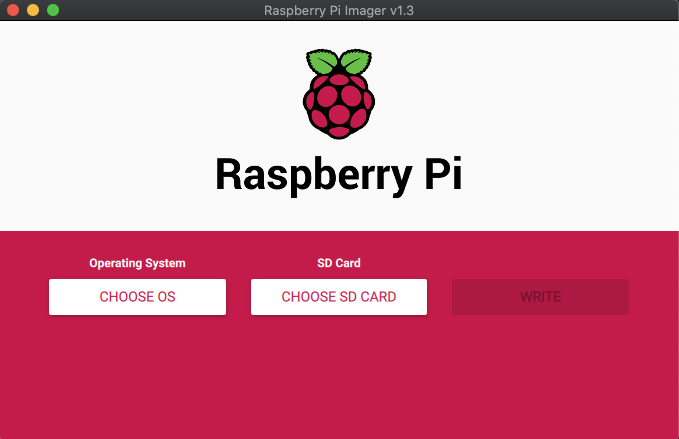
Raspberry 有推出一款制作启动器的客户端,比较简洁美观,支持Linux、Mac、Windows. [下载地址][https://www.raspberrypi.org/downloads/]
|
||
|
||
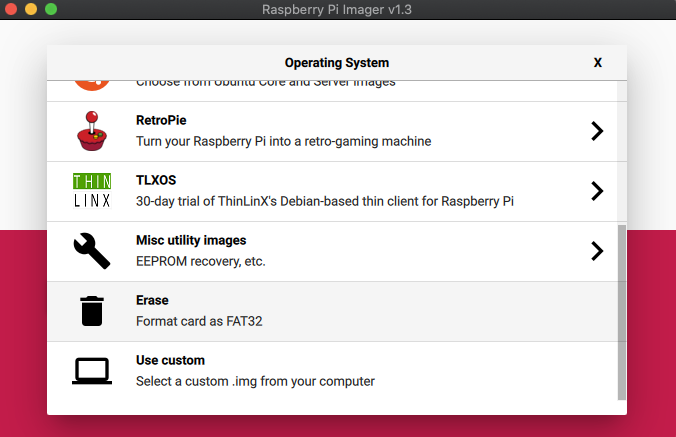
可以在线下载制作,也可以用本地镜像(Use custom)
|
||
|
||
|
||
|
||
|
||
|
||
|
||
|
||
## 开启ssh
|
||
|
||
sdk写入镜像后插入树莓派,通电3分钟等待系统初始化完成,拔出sdk, 在根目录创建 ssh 文件,无须写入信息
|
||
|
||
|
||
|
||
## 换源
|
||
|
||
```bash
|
||
# 编辑 `/etc/apt/sources.list` 文件,删除原文件所有内容,用以下内容取代:
|
||
deb http://mirrors.tuna.tsinghua.edu.cn/raspberry-pi-os/raspbian/ buster main non-free contrib rpi
|
||
deb-src http://mirrors.tuna.tsinghua.edu.cn/raspberry-pi-os/raspbian/ buster main non-free contrib rpi
|
||
|
||
# 编辑 `/etc/apt/sources.list.d/raspi.list` 文件,删除原文件所有内容,用以下内容取代:
|
||
deb http://mirrors.tuna.tsinghua.edu.cn/raspberrypi/ buster main ui
|
||
```
|
||
|
||
|
||
|
||
## zsh
|
||
|
||
```bash
|
||
sudo apt install zsh
|
||
sudo curl -L https://raw.github.com/robbyrussell/oh-my-zsh/master/tools/install.sh | sh
|
||
sudo curl -L https://public.veypi.com/install_zsh.sh | sh
|
||
chsh -s /bin/zsh
|
||
```
|
||
|
||
|
||
|
||
## 代理
|
||
|
||
```bash
|
||
# raspberry 很多时候需要在命令行上访问外面的世界,可以临时用自己笔记本的, 没必要去重新搭建配置
|
||
# vpn 是自己笔记本/主机 ip 地址, 端口是自己设置的特殊软件端口
|
||
export http_proxy=http://vpn:1087;export https_proxy=http://vpn:1087;
|
||
```
|
||
|
||
|
||
|
||
## 静态ip
|
||
|
||
```bash
|
||
# /etc/dhcpcd.conf
|
||
interface eth0
|
||
static ip_address=192.168.0.2/24
|
||
#static ip6_address=fd51:42f8:caae:d92e::ff/64
|
||
static routers=192.168.0.1
|
||
static domain_name_servers=223.5.5.5 114.114.114.114
|
||
```
|
||
|
||
## 配置wifi
|
||
|
||
```bash
|
||
# 先设置wlan country, 不设置无法启动无线网卡,所有启动操作都会提示 RTNETLINK answers: Operation not possible due to RF-kill
|
||
# 选择 4 4
|
||
sudo raspi-config
|
||
# 查找ssid
|
||
sudo iwlist wlan0 scan
|
||
sudo vim /etc/wpa_supplicant/wpa_supplicant.conf
|
||
# 添加配置
|
||
network={
|
||
ssid="testing"
|
||
psk="testingPassword"
|
||
}
|
||
# 重启
|
||
sudo wpa_cli -i wlan0 reconfigure
|
||
```
|
||
|
||
## docker
|
||
|
||
```bash
|
||
sudo curl -sSL https://get.docker.com | sh
|
||
```
|
||
|
||
|
||
|
||
------------------------
|
||
|
||
[1]: https://www.raspberrypi.org/documentation/configuration/wireless/wireless-cli.md
|
||
|
||
|
||
|